
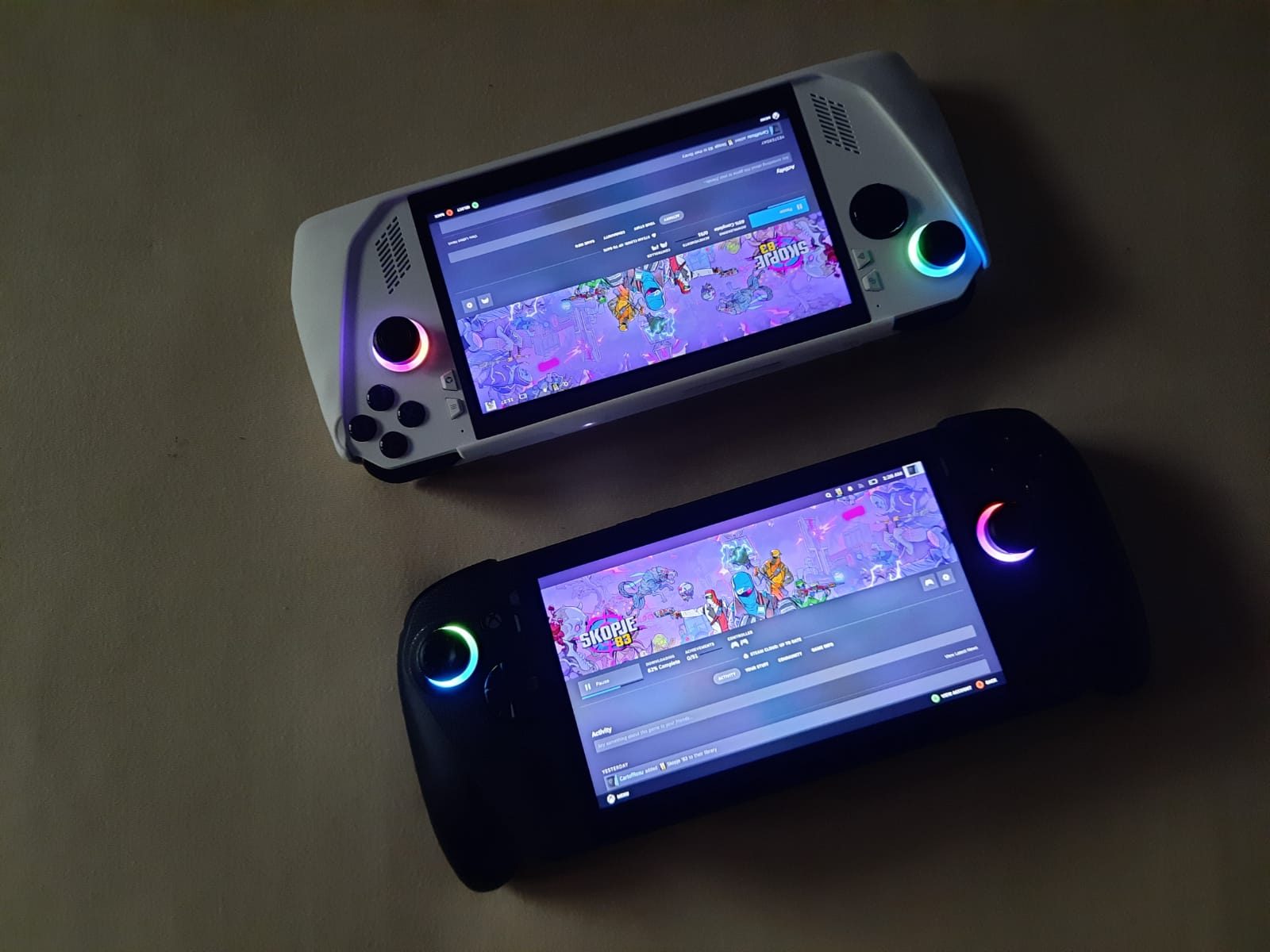
We brought the ASUS ROG Ally Z1 Extreme close to the ROG Xbox Ally experience

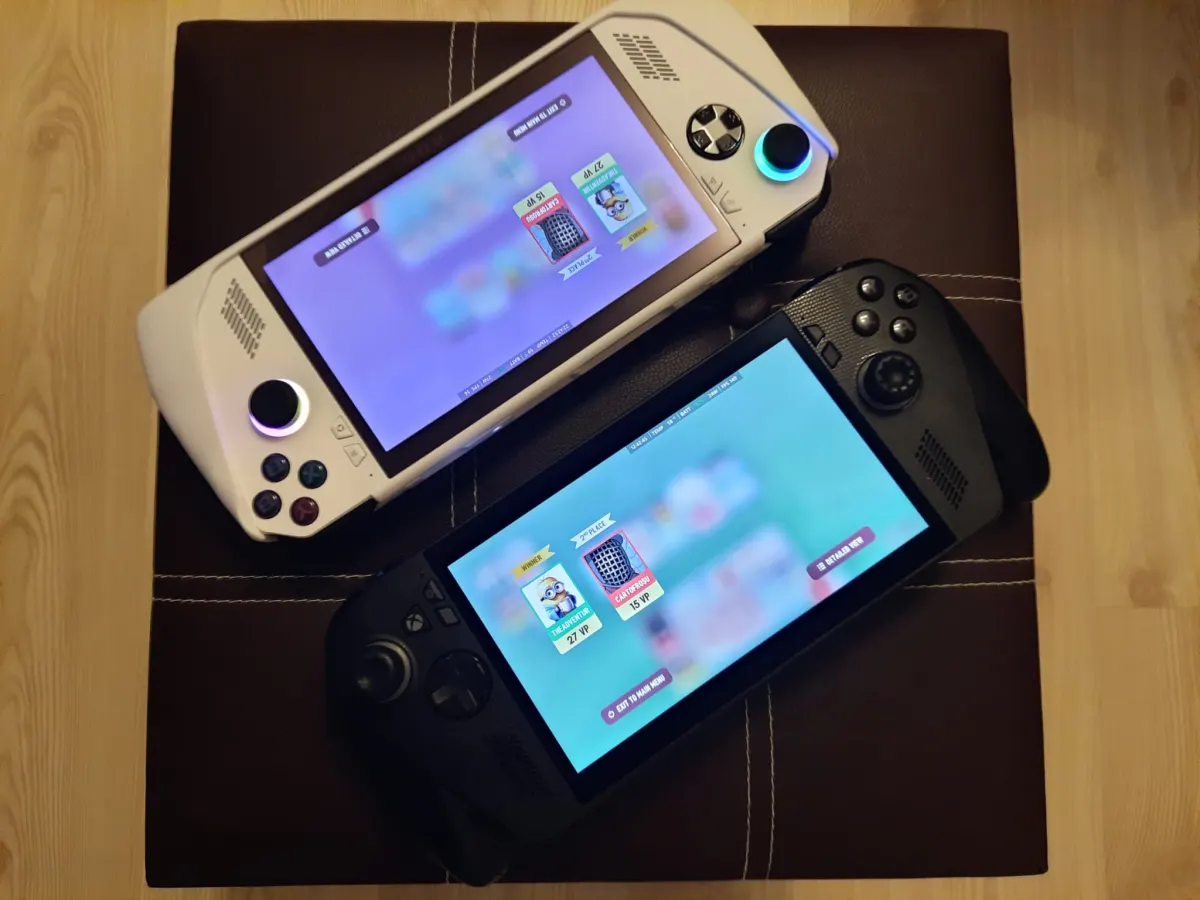
When ASUS launched the first ROG Ally Z1 Extreme, it completely changed the game.
With an AMD Z1 Extreme APU based on Zen 4 architecture and RDNA 3 graphics, a 7-inch 120Hz screen and solid build, the Ally quickly became a small monster of mobile performance.
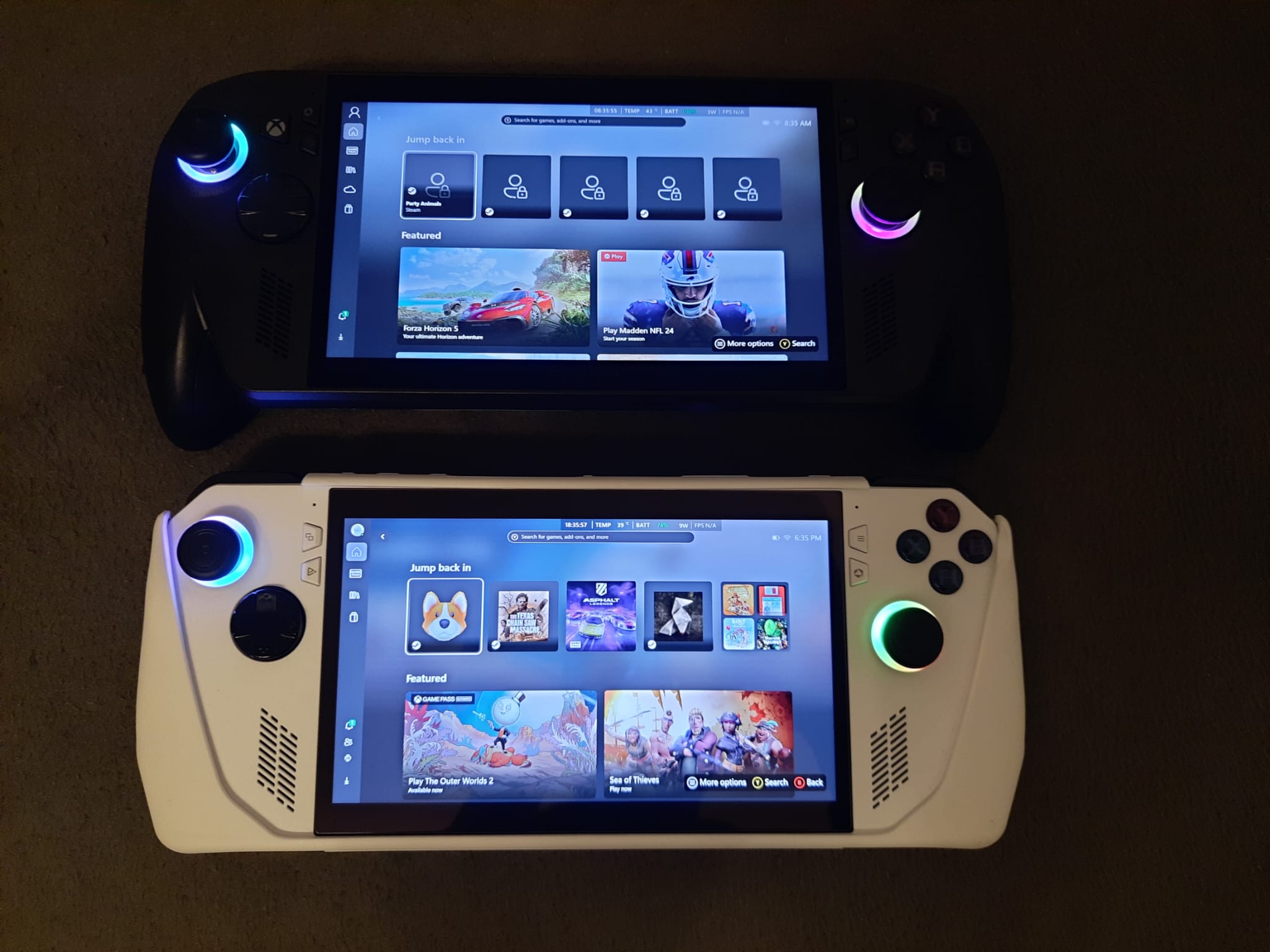
However, in 2024, ASUS and Microsoft took the concept further, launching the ROG Xbox Ally, a model that not only refines the hardware, but also integrates a new gaming experience: the Xbox Full Screen Experience.
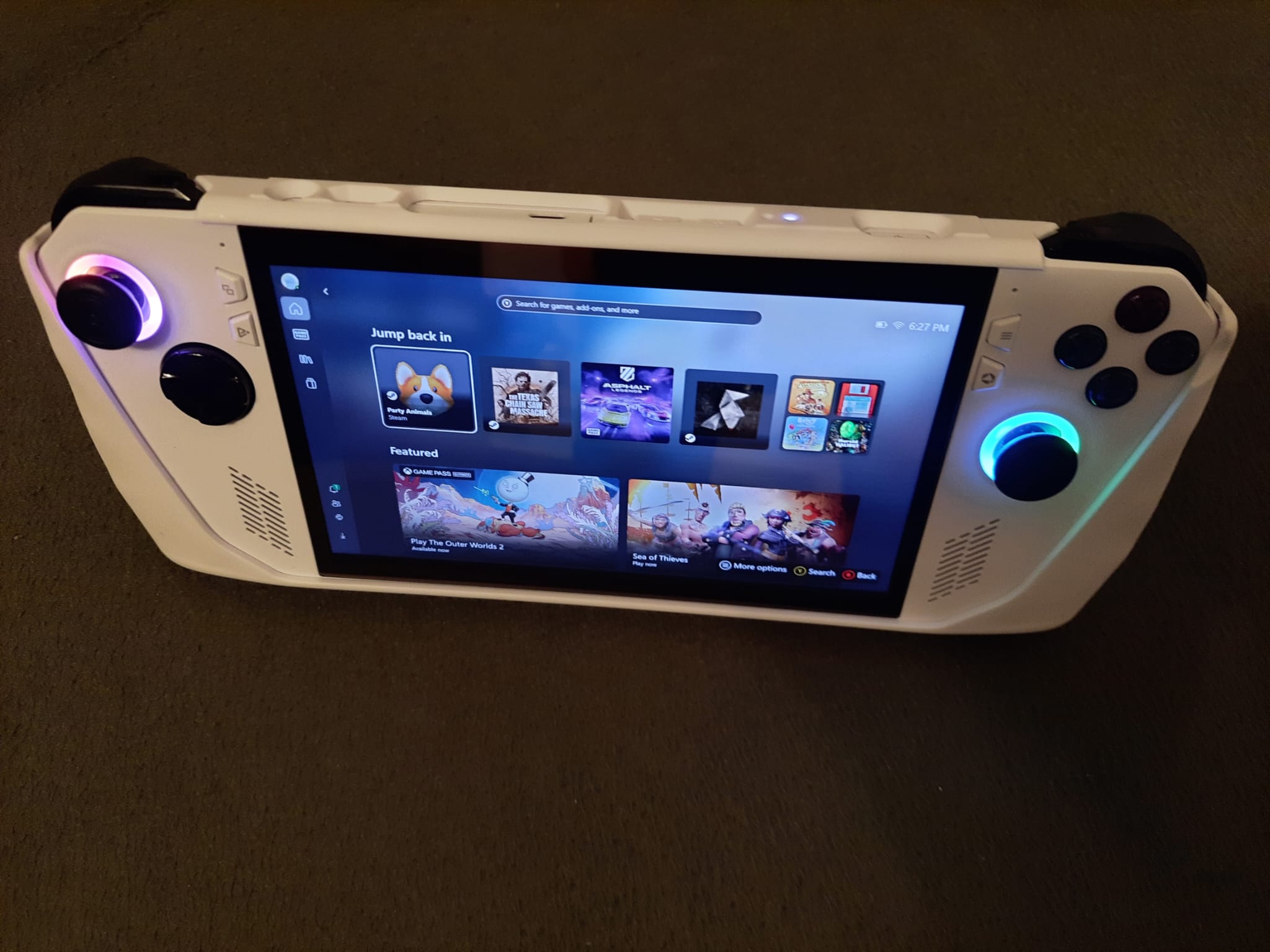
If you already own a ROG Ally Z1 Extreme, the good news is you don't have to replace it to benefit from many of these new features. With a few updates, optimisations, and minor modifications, you can achieve an experience very close to that of an Xbox Ally.
1/Start with system and firmware updates
The first step is simple, but essential: keep your system fully updated.
ASUS has continued to provide extensive support for the ROG Ally Z1 Extreme, offering BIOS updates, drivers, and new versions of Armoury Crate SE. Many of these updates include improvements directly inspired by the Ally X generation: more balanced thermal profiles, better fan response times, and power consumption optimisations in Silent mode.
Open Armoury Crate SE > Settings > Update Center and apply all available updates, then go to Windows Update and check if your system is running Windows 11 version 25H2 or newer. This also brings support for the new Xbox Full Screen Experience module, an important part of the transformation we're talking about.
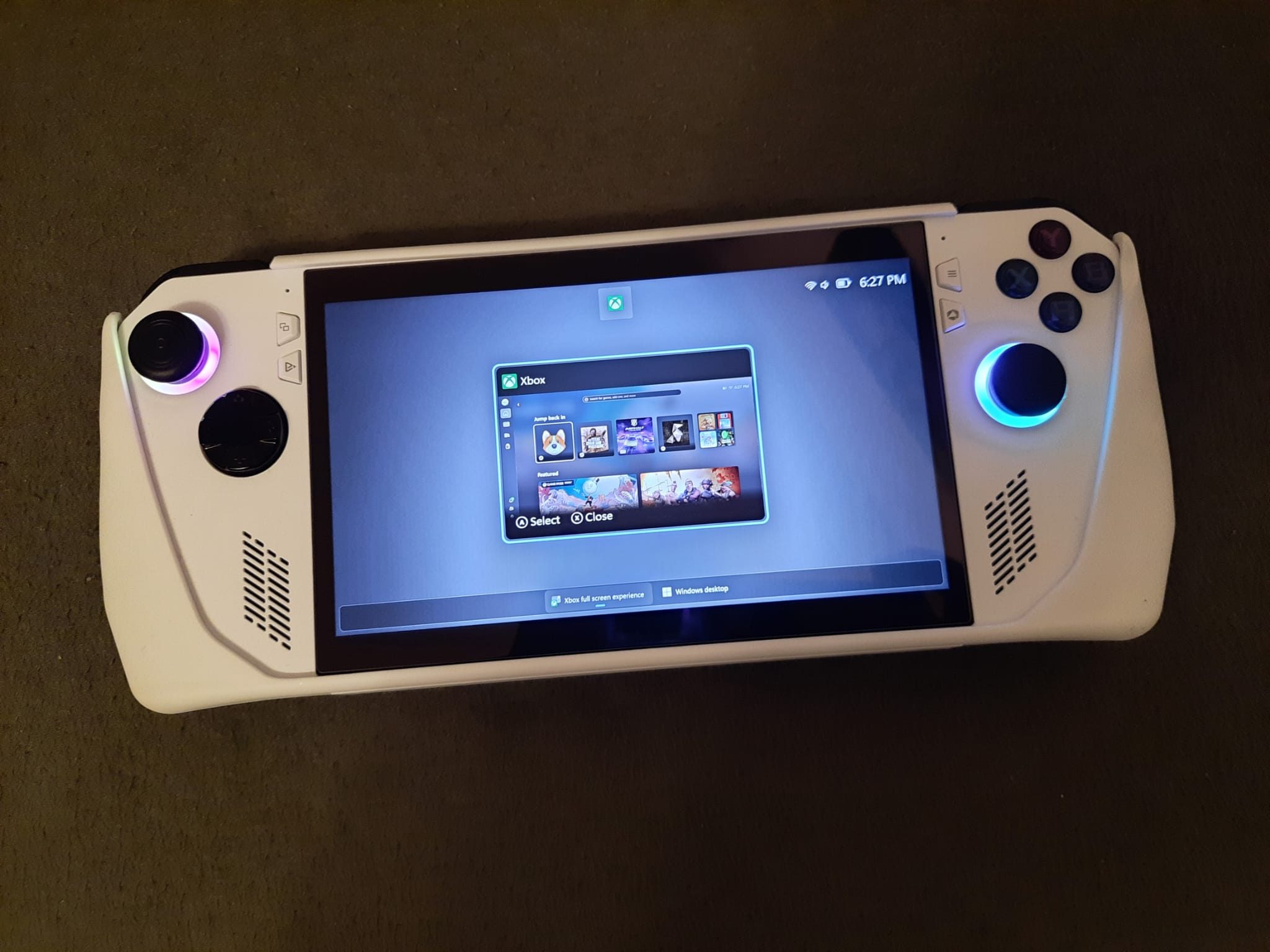
2/Xbox Full Screen Experience or the new “console” mode for Windows
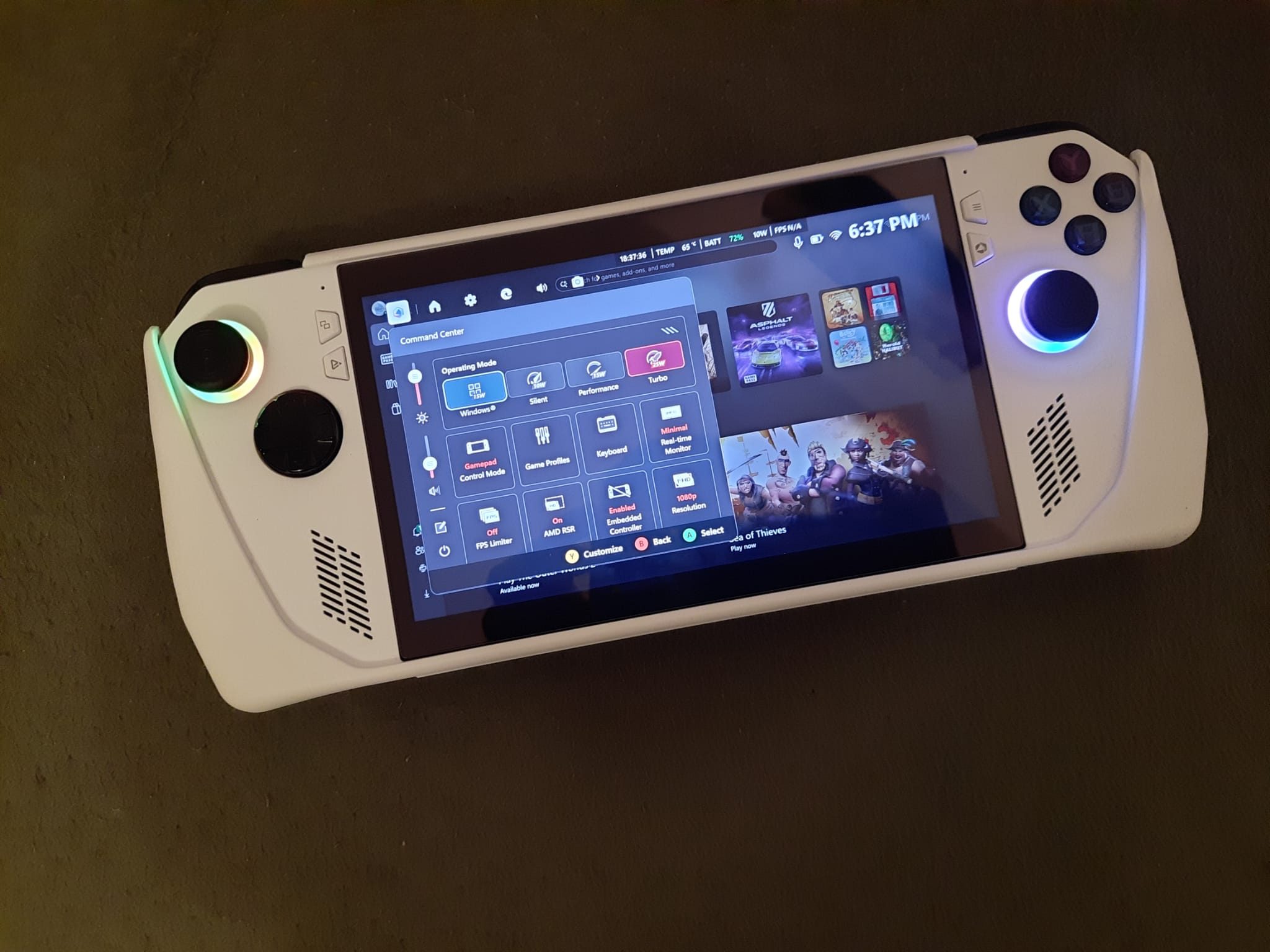
One of the biggest differences between the ROG Ally Z1 Extreme and the ROG Xbox Ally is this new interface created by Microsoft and ASUS: the Xbox Full Screen Experience.
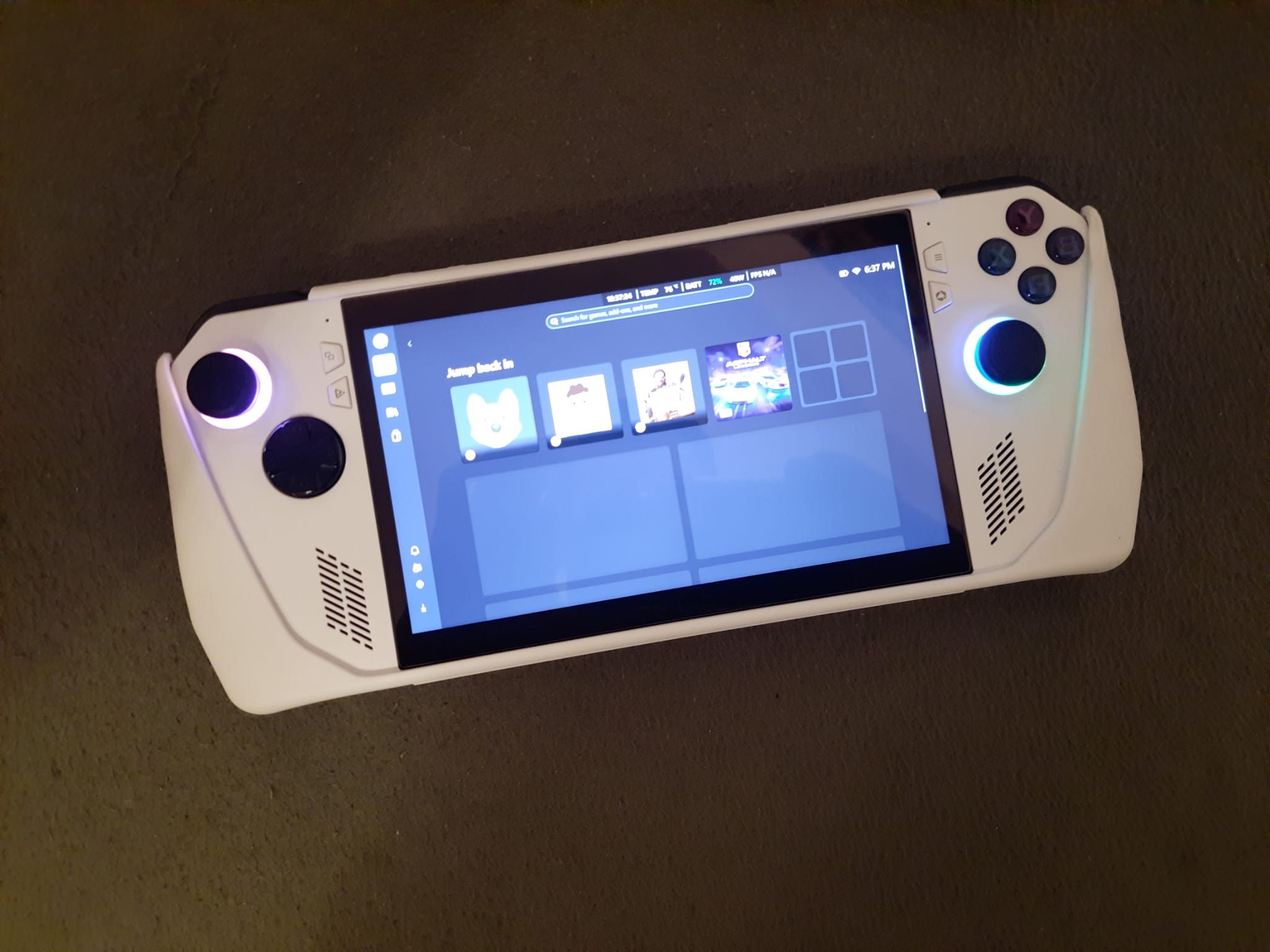
This is, practically, a version of Windows designed for portable gaming. When you activate this mode, the system boots directly into a full-screen interface, fully controllable with the sticks and buttons, without the need to navigate through the desktop or taskbar.
It's like a unified launcher for all platforms: Xbox Game Pass, Steam, Epic Games, Battle.net, GOG and others. Where have we seen something like this before? Oh, yes, on the Steam Deck!
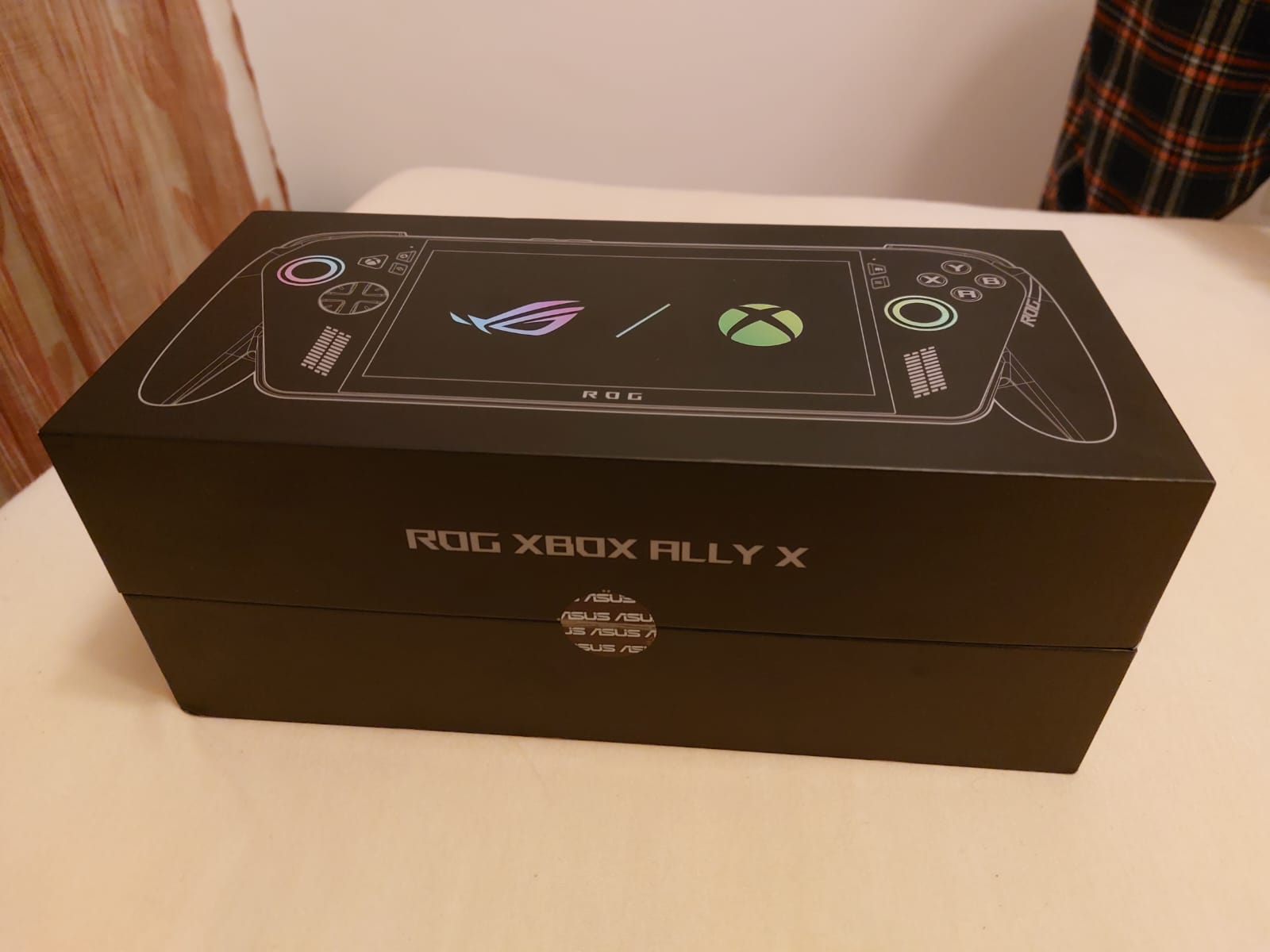
What's more, this mode isn't just a pretty interface. In the background, Windows automatically applies a series of performance optimisations:
- Temporarily stops non-essential background services and processes;
- Reduces RAM and CPU consumption of Windows applications;
- Applies power and performance profiles dedicated to gaming;
- Natively integrates features like Auto HDR, Dynamic Refresh Rate, and Auto SR (Super Resolution);
- Minimises input latency for controllers and streaming.
The result is an experience much closer to that of a console. Your Ally boots directly into the games screen, moves more fluidly, and allocates almost all hardware resources to the games you're playing.
3/Installation and integration of the Xbox ecosystem
On the ROG Ally Z1 Extreme, you can almost completely recreate the Xbox Ally ecosystem through software.
Make sure you have the following applications installed:
- Xbox App, for downloading and managing games from Xbox Game Pass;
- Xbox Game Bar, for quick overlay, FPS monitoring, video capture, and chatting with friends;
- Xbox Cloud Gaming, for streaming games directly from the cloud or a local Xbox console.
After logging in with your Microsoft account, the experience becomes almost identical to that of the Xbox Ally model.
4/Windows optimisations for maximum performance
Even without the Xbox Full Screen interface, Windows 11 has evolved enormously for gaming.
Activate Game Mode from Settings > Gaming > Game Mode. This will prioritise game processes, reduce background activity, and automatically apply more efficient power profiles.
With Windows 11, Microsoft also introduced the EcoQoS feature, which dynamically manages CPU frequencies for non-critical applications. Combined with optimisations from Armoury Crate, this reduces the average device temperature by up to 5–7°C during long gaming sessions, without significant FPS loss. Yes, I know, it depends on taste and especially on the games you play…
5/Hardware upgrades for more space and flexibility
Although the ROG Xbox Ally has switched to an M.2 2280 SSD and a larger battery, your old Z1 Extreme isn't far behind.
You can replace the internal M.2 2230 SSD with a faster and larger one (up to 2TB), using a compatible PCIe Gen 4 model. ASUS has an official guide on their website, and the iFixit community offers step-by-step visual tutorials.
Also, adding a compatible USB-C dock (such as the ASUS ROG Gaming Charger Dock or variants from Anker, UGREEN, or Baseus) allows you to connect your Ally to an external monitor, keyboard, and controllers. This transforms the device into a “mini console” that can run AAA games on your TV at 60+ FPS.
If you want to play in a different league, I also recommend purchasing an external graphics card with a specific connector that can be attached to your console. Yes, it costs about as much as the whole console, but the performance, some experts say, is almost comparable to that of a desktop. Myth or truth? I don't know, but if you have the necessary finances, I think it's worth a try!
6/Control experience and customisation
Using Armoury Crate SE, you can create performance profiles for each game:
- “Silent” for indies or streaming;
- “Performance” for everyday gaming;
- “Turbo” for demanding titles.
In addition, you can completely remap the buttons using Steam Input or dedicated applications like reWASD, to make your Ally behave exactly like an Xbox Series X controller.
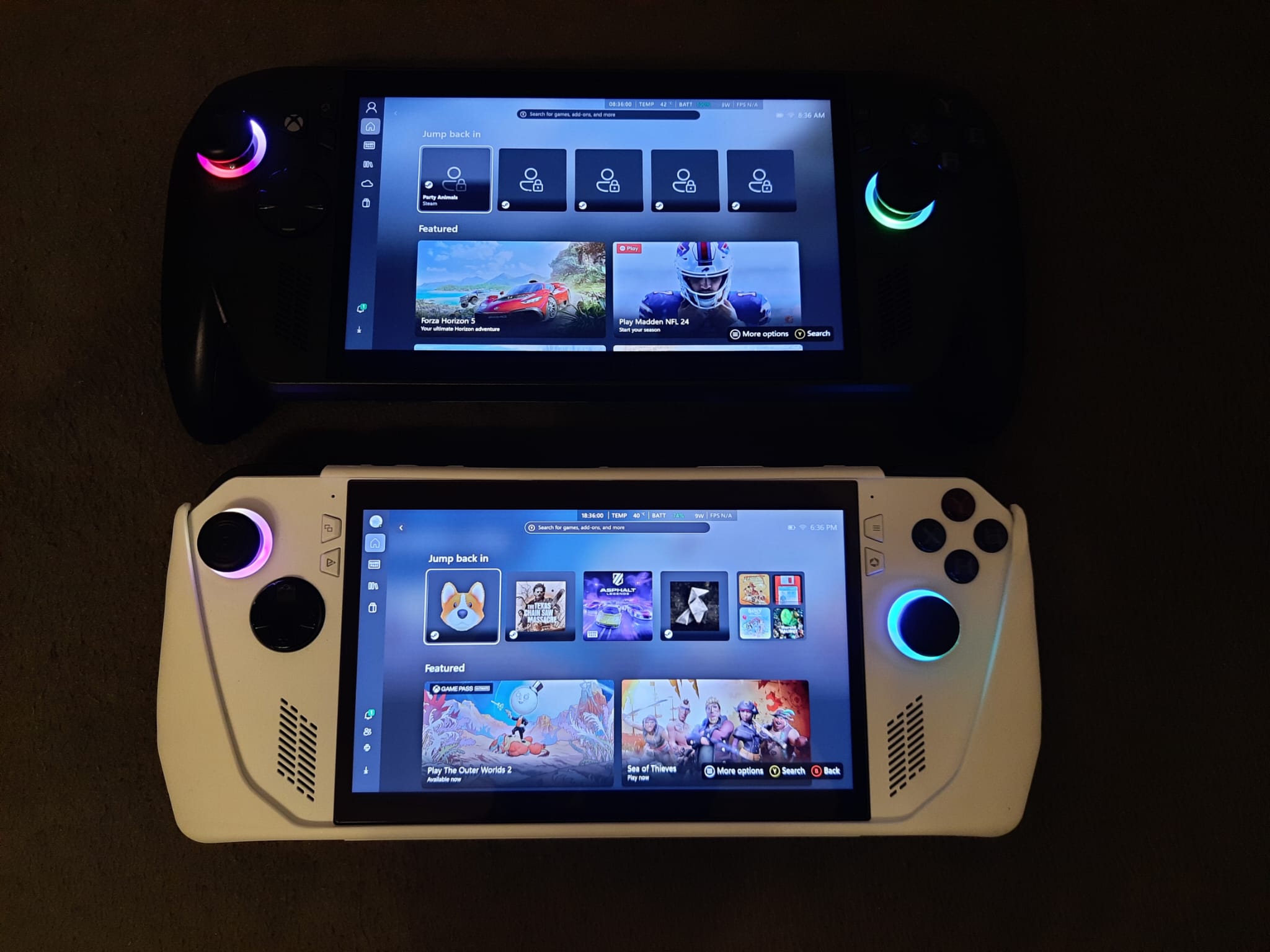
Thus, each game will correctly display the button symbols (A/B/X/Y) and react instantly to input.
7/Look & feel or how to bring the Xbox spirit into design
If you want your Ally to also look like an Xbox Ally, you can go for visual customisations:
- Green or black matte skins (Dbrand, MightySkins, ExtremeSkins);
- Aftermarket joystick caps and buttons in Xbox style;
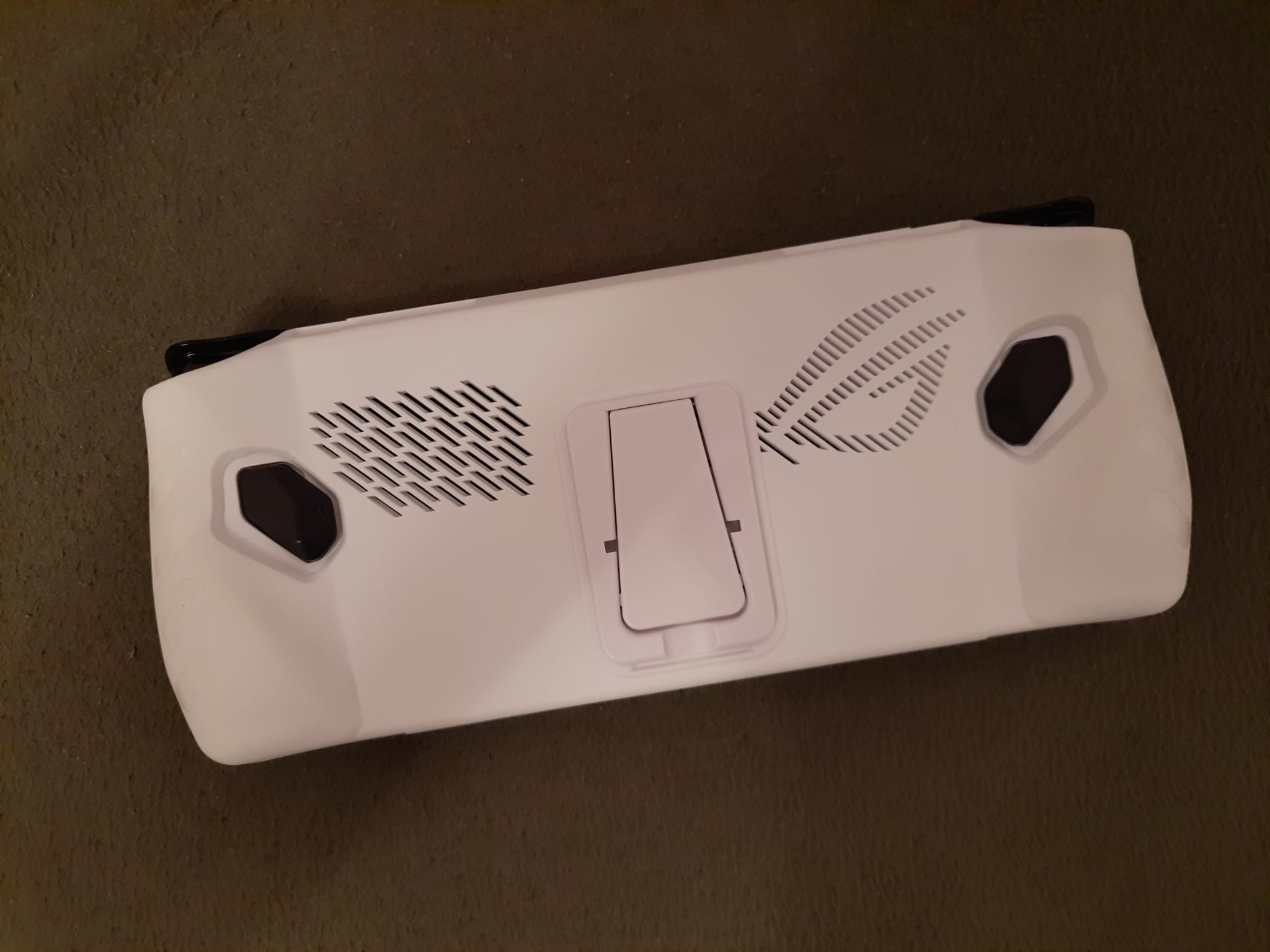
- Silicone grips for a better hold and extended comfort.
Thus, even visually, your device will look like the new Xbox Ally generation.
The real limits of the experiment
There are, however, physical limits, otherwise there would have been no point in even considering buying the new console, right? You can't change the processor (the APU is soldered), the RAM is integrated on the board, and the battery has a smaller capacity than that of the Xbox Ally model.
However, everything else – software, interface, ergonomics, gaming experience – can be brought very close to the new standard. Even with the battery, if you don't want to void your warranty but still want extra playtime, you can purchase an external battery that allows 100W charging. The results will surprise you, and the investment will remain modest.
The ASUS ROG Ally Z1 Extreme remains an extremely capable device. With the help of Windows 11 updates and the new Xbox Full Screen Experience, you can completely transform the way you use it. You launch directly into the games interface, get rid of unnecessary processes, have full control over button function adjustments, and performance is optimised for each title.

Add a faster SSD, an HDMI dock, a capable external battery, and some new visual accents, and your old Ally will look, move, and feel very close to a ROG Xbox Ally. Ultimately, true innovation isn't just in the hardware, but in how software evolves to leverage everything you already have.